Today we’re going walk through how we can quickly set ourselves up with a database to act as a local data warehouse that we can play with during the development stage of our data pipeline.
The requirements for our DEV data warehouse are the following:
- Minimal overhead – quick and easy to get started (no complicated IT requirements)
- Easily repeatable and reproducible so that we can pick-up and work from the same point at different times
- Functional with enough features so that our processes are similar to what a final PROD solution might look like
With these requirements in mind, the best option for us to get our feet wet with developing some of our initial data processes is to use a local Postgresql database that we can easily spin up-and-down with docker and docker compose. Since we’re in the initial development stages of our pipeline, we’re not too concerned with whether we will use Postgresql for our PROD data warehouse. We’re just looking for an environment that we can jump into in an afternoon and start building. Many of the steps & procedures we create will translate to any data warehouse solution we might pick for our PROD data warehouse.
Let’s jump right in and get building. Make sure you have Docker and Docker Compose installed on your machine (follow the installation instructions here if you don’t already have them).
Creating A Database with Docker and Docker Compose
Create a new folder for this project and, in your text-edit/or of choice (see mine here) create a new file called docker-compose.yml and add these lines
version: "3.9"

services:
  postgres-dwh:
    image: postgres:latest
    ports:
      - "5432:5432"
    environment:
      POSTGRES_USER: admin
      POSTGRES_PASSWORD: admin
    volumes:
      - company-dwh:/var/lib/postgresql/data

volumes:
  company-dwh: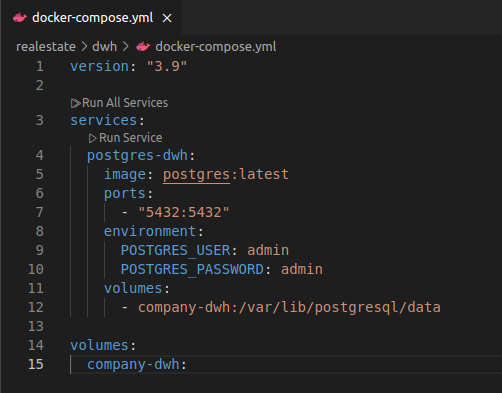
In the terminal run the command docker compose up --build …. voila, we have a database.
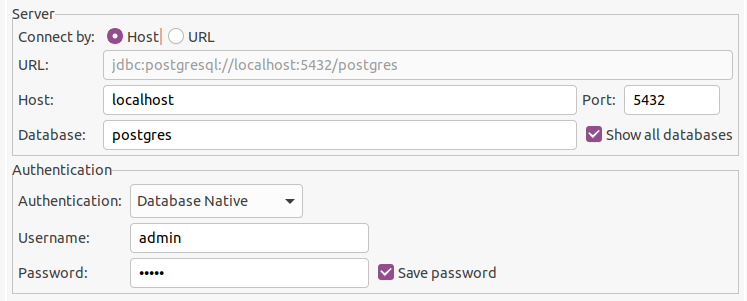
Here’s what you need to fill into the connection details in order to connect to it from your client (note the Username and Password must match the POSTGRES_USER and POSTGRES_PASSWORD environment variables set in our docker-compose.yml script. “postgres” is the default database created for us
A Few Modifications to our Database
If you were able to spin up the database and connect then you’re off to a good start. Now there’s a slight change we should make to our basic database to make sure that we can repeatably set it up as a DEV environment for our data pipeline project.
To start, create a sub-directory in your project folder called scripts and another one within that called init.
Adding this line to our docker-compose.yml will cause Docker to run the scripts (in alphabetical order) in the init directory whenever the database is rebuilt
version: "3.9"

services:
  postgres-dwh:
    image: postgres:latest
    ports:
      - "5432:5432"
    environment:
      POSTGRES_USER: admin
      POSTGRES_PASSWORD: admin
    volumes:
      - company-dwh:/var/lib/postgresql/data
      - ./scripts/init:/docker-entrypoint-initdb.d

volumes:
  company-dwh:
Our scripts need to do 3 things (and will be contained within 3 separate files):
- 001_create_database.sql – Create our database (the one we will do our work in)
- 002_create_roles_and_schemas.sql – Create the user roles & schemas (separates the different stages of our data pipeline)
- 003_create_raw_tables.sql – Create the “raw” tables that will hold our initial data
If we can create scripts that will do these 3 things for us, then we will have a way to repeatably build an environment that we can do our development work in – and one that will behave consistently every time we need to work on it.
1. 001_create_database.sql
The script to create our database is very simple – one line (call your database whatever you want, just stay consistent throughout the entire tutorial):
create database company_dw;Below you will see that we will need to explicitly connect to our data base company_dw each time we run one of our automated scripts.
2. 002_create_roles_and_schemas.sql
We want to create roles that will have exclusive purposes. For instance, we would want a role called “transform” that we use to do all of our data transformations. This ensures that we can grant the relevant access and know that the tools and programs responsible for transformation of the data have the appropriate permissions.
To help follow the SQL code, roles, schemas and privileges are highlighted accordingly.
The roles we want are:
- dev – to use for developing our data pipeline
- loader – to load in the raw data from our data sources
- transform – to use within our data transformation tool and apply our logic and data processing steps
- bi – for our visualization tools to access our fully processed, ready-to-use data
\connect company_dw;

create role dw_dev login password 'dev' nosuperuser nocreatedb nocreaterole;
create role dw_loader login password 'loader' nosuperuser nocreatedb nocreaterole;
create role dw_transform login password 'transform' nosuperuser nocreatedb nocreaterole;
create role dw_bi login password 'bi' nosuperuser nocreatedb nocreaterole;

grant connect on database company_dw to dw_dev, dw_loader, dw_transform, dw_bi;
We also want to create our schemas. One for each of the different steps our data will take throughout the pipeline process. In the same script add the following code:
create schema if not exists raw;
create schema if not exists staging;
create schema if not exists marts;

grant usage on schema raw, staging, marts to dw_dev, dw_loader, dw_transform, dw_bi;
And for each schema we will grant the appropriate privileges to each of our roles:
-- raw
grant select, insert, update, delete on all tables in schema raw to dw_loader;
alter default privileges in schema raw grant select, insert, update, delete on tables to dw_loader;

grant select on all tables in schema raw to dw_transform, dw_dev;
alter default privileges in schema raw grant select on tables to dw_transform, dw_dev;

-- staging
grant select, insert, update, delete on all tables in schema staging to dw_transform;
alter default privileges in schema staging grant select, insert, update, delete on tables to dw_transform;

grant select on all tables in schema staging to dw_dev;
alter default privileges in schema staging grant select on tables to dw_dev;

-- marts
grant select, insert, update, delete on all tables in schema marts to dw_transform;
alter default privileges in schema marts grant select, insert, update, delete on tables to dw_transform;

grant select on all tables in schema marts to dw_dev, dw_bi;
alter default privileges in schema marts grant select on tables to dw_dev, dw_bi;
3. 003_create_raw_tables.sql
Now that we have our roles, schemas and privileges set up, we can create the raw tables that our data will be loaded into.
Each of our raw tables should contain a text column, type varchar(255), for each column in each of our data files – which we know well from the previous steps where we completed our data profiling exercise.
\connect company_dw;

-- leases

create table if not exists raw.leases (
    "lease_id" varchar(255),
    "property_id" varchar(255),
    "tenant_id" varchar(255),
    "lease_start_date" varchar(255),
    "lease_end_date" varchar(255),
    "leased_sqft" varchar(255),
    "monthlyRent" varchar(255),
    "notes" varchar(255)
);


-- properties

create table if not exists raw.properties (
    "property_id" varchar(255),
    "property_name" varchar(255),
    "property_type" varchar(255),
    "city" varchar(255),
    "state" varchar(255),
    "total_sqft" varchar(255),
    "year_built" varchar(255)
);

-- rent_payments

create table if not exists raw.rent_payments (
    "lease_id" varchar(255),
    "payment_month" varchar(255),
    "amount_due" varchar(255),
    "amount_paid" varchar(255),
    "payment_status" varchar(255)
);

-- tenants

create table if not exists raw.tenants (
    "tenant_id" varchar(255),
    "company_name" varchar(255),
    "industry" varchar(255),
    "num_employees" varchar(255)
);

-- vacancy_history

create table if not exists raw.vacancy_history (
    "property_id" varchar(255),
    "month" varchar(255),
    "vacancy_rate" varchar(255)
);


alter table raw.leases owner to dw_loader;
alter table raw.properties owner to dw_loader;
alter table raw.rent_payments owner to dw_loader;
alter table raw.tenants owner to dw_loader;
alter table raw.vacancy_history owner to dw_loader;
With these 3 scripts in place, we can again run the command docker compose up –build in our terminal and re-connect to our database
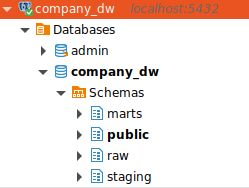
In our database company_dw you will see our schemas raw, staging, and marts
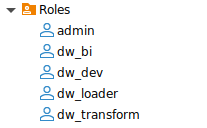
and our roles dw_dev, dw_loader, dw_transform, and dw_bi
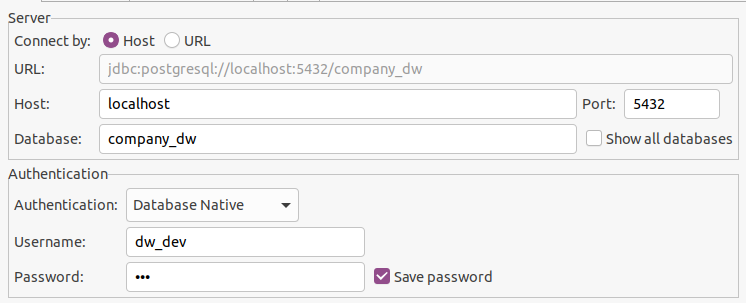
Verify that you can connect to the database with the dw_dev role (remember the login password for this role is simply ‘dev’)
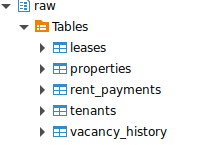
And also look for our tables in the raw schema
Inserting Data Into our Raw Tables
Let’s create a python program that will load the data from our CSV files into our database.
Create a new folder within the project directory and call it etl. In this folder create a new python virtual environment. Run command python -v venv .venv and activate the new virtual environment (Windows: .venv\Scripts\activate mac/Linux: source .venv/bin/activate). We’ll need to install a few python libraries within this venv. With the venv activated run pip install pandas sqlalchemy psycopg2-binary and we’ll create a requirements.txt file that will be referenced later pip freeze > requirements.txt
Next we will need to create 3 script files:
- main.py – main code to organize our etl steps
- ingestion.py – dedicated class for ingesting a CSV file into our PostgreSQL database
- logger.py – sets up a directory with log files to track the progress of our data loading steps
First let’s write the code for our logger:
logger.py
This is pretty simple, we just want to set up a logger to log both to a text file and directly to the console.
import logging
import os

log_dir = "logs"
os.makedirs(log_dir, exist_ok=True)
log_file = os.path.join(log_dir, "etl_loader.log")

# Configure logger
logging.basicConfig(
    level=logging.INFO,
    format="%(asctime)s [%(levelname)s] %(name)s - %(message)s",
    handlers=[
        logging.FileHandler(log_file), # Log to file
        logging.StreamHandler() # Log to console
    ]
)

# Create a global logger (so we can use it in our other scripts)
logger = logging.getLogger("etl_loader")
ingestion.py
A few things to note with this class. First we’ll need to receive the database connection paramers, which we grab in the constructor via db_params.
We’ll have one method on the class ingest_csv_data. The steps we need to take are:
- read the CSV file
- connect to the database
- clear the raw table of any existing data that may be in it
- load the data from the file into the table
import pandas as pd
from sqlalchemy import create_engine, text
from logger import logger


class DataIngestion:
    def __init__(self, db_params):
        self.db_params = db_params


    def ingest_csv_data(self, csv_file, schema_name, table_name):
        logger.info(f"Starting ingestion for file: {csv_file} into table {schema_name}.{table_name}")
        try:
            df = pd.read_csv(csv_file)

            engine = create_engine(f'postgresql+psycopg2://{self.db_params["user"]}:{self.db_params["password"]}@{self.db_params["host"]}:{self.db_params["port"]}/{self.db_params["dbname"]}')
            with engine.begin() as conn:

                stmt = text(f'truncate table "{schema_name}"."{table_name}"')
                conn.execute(stmt)

            df.to_sql(table_name, engine, schema=schema_name, if_exists='append', index=False)

            logger.info(f"Successfully ingested {len(df)} rows into {schema_name}.\"{table_name}\"")

        except Exception as e:
            logger.error(f"Failed to load file {csv_file}: {e}")
            raise
main.py
This is where it all comes together. This script will have the list of steps that our ETL process will execute.
First, we need to get the credentials for the dw_loader user on our data warehouse database. We get the database host, port, name, user and password from environment variables.
In the main function, we initialize the DataIngestion class and pass the database credentials.
We have 5 data files, and we need to call ingest_csv_data for each of our files:
import os
from dotenv import load_dotenv
from ingestion import DataIngestion
from logger import logger
from pathlib import Path


# Load environment variables from .env file
load_dotenv(dotenv_path=os.path.join(os.path.dirname(__file__), '..', '.env'))

# database credentials
db_credentials = {
        "dbname":os.getenv('DATABASE_NAME'),
        "user":os.getenv('DATABASE_USER'),
        "password":os.getenv('DATABASE_PASSWORD'),
        "host":os.getenv('DATABASE_HOST'),
        "port":os.getenv('PORT')
    }


def main():

    # ingestion setup
    data_ingestion = DataIngestion(db_credentials)

    # leases
    leases_path = Path('/data/leases.csv')
    data_ingestion.ingest_csv_data(leases_path, 'raw', 'leases')

    # properties
    properties_path = Path('/data/properties.csv')
    data_ingestion.ingest_csv_data(properties_path, 'raw', 'properties')

    # rent_payments
    rent_payments_path = Path('/data/rent_payments.csv')
    data_ingestion.ingest_csv_data(rent_payments_path, 'raw', 'rent_payments')

    # tenants
    tenants_path = Path('/data/tenants.csv')
    data_ingestion.ingest_csv_data(tenants_path, 'raw', 'tenants')

    # vacancy_history
    vacancy_history_path = Path('/data/vacancy_history.csv')
    data_ingestion.ingest_csv_data(vacancy_history_path, 'raw', 'vacancy_history')


if "__main__" == __name__:
    main()
That’s all the python code we need. Now we just need to make it work with our existing set up.
Dockerize our ETL scripts
We will create a dockerfile in our etl directory. We’ll also need to modify our docker-compose.yml file in our project folder
First we start with a python image
# Base image
FROM python:3.10-slim
Set our working directory within the container
# Set working directory
WORKDIR /src
Copy our requirements.txt file over and install them so that our docker container has the pyhon libraries it needs to run the etl scripts.
# Copy and install Python dependencies
COPY requirements.txt .
RUN pip install --no-cache-dir -r requirements.txt
Copy over our python scripts
# Copy code
COPY . /src
Finally, run the main.py script which has our code to perform the ETL of our data files
# run ETL first
CMD bash -c "\
    echo 'Waiting for PostgreSQL initialization...'; \
    echo 'Starting ingestion process...'; \
    sleep 10; \
    python3 main.py; \
    echo 'Ingestion completed successfully.'; \
"
dockerfile
# Base image
FROM python:3.10-slim

# Set working directory
WORKDIR /src

# Copy and install Python dependencies
COPY requirements.txt .
RUN pip install --no-cache-dir -r requirements.txt

# Copy code
COPY . /src

# run ETL first, then DBT
CMD bash -c "\
    echo 'Waiting for PostgreSQL initialization...'; \
    echo 'Starting ingestion process...'; \
    sleep 10; \
    python3 main.py; \
    echo 'Ingestion completed successfully.'; \
"
And we’ll need to make a modification to our docker-compose.yml
We need to add a new service which we’ll call etl_app
A few key things to call out..
Make sure our build.context points to our etl directory. And we point build.dockerfile we point it to the dockerfile we just created
build:
      context: ./etl/.
      dockerfile: ./dockerfile
We give our docker container a name
container_name: etl_appWe need to give the container access to the directory that contains our data files
volumes:
      - ./data:/data
This is an important step. We need to make sure our database is created before we run our data ingestion scripts. So we reference our existing postgres-dwh service and make sure it’s healthy be fore we run our ETL app
depends_on:
      postgres-dwh:
        condition: service_healthy
And we’ll need to add a requisite healthcheck to our postgres-dwh service like this:
healthcheck:
      test: ["CMD-SHELL", "pg_isready -U admin -d company_dw"]
      interval: 30s
      timeout: 60s
      retries: 5
      start_period: 80s
Finally we need to pass the environment variables that tell our python script which database to connect to and which user to run with
environment:
      DATABASE_NAME: company_dw
      DATABASE_USER: dw_loader
      DATABASE_PASSWORD: loader
      DATABASE_HOST: postgres-dwh
      PORT: 5432
Updated docker-compose.yml
version: "3.9"

services:
  postgres-dwh:
    image: postgres:latest
    ports:
      - "5432:5432"
    environment:
      POSTGRES_USER: admin
      POSTGRES_PASSWORD: admin
    healthcheck:
      test: ["CMD-SHELL", "pg_isready -U admin -d company_dw"]
      interval: 30s
      timeout: 60s
      retries: 5
      start_period: 80s
    volumes:
      - company-dwh:/var/lib/postgresql/data
      - ./scripts/init:/docker-entrypoint-initdb.d

  etl_app:
    build:
      context: ./etl/.
      dockerfile: ./dockerfile
    container_name: etl_app
    volumes:
      - ./data:/data
    depends_on:
      postgres-dwh:
        condition: service_healthy
    environment:
      DATABASE_NAME: company_dw
      DATABASE_USER: dw_loader
      DATABASE_PASSWORD: loader
      DATABASE_HOST: postgres-dwh
      PORT: 5432

volumes:
  company-dwh:
Now just re-run our docker-compose.yml with command docker compose up –build, you’ll see output on the console from our etl-app

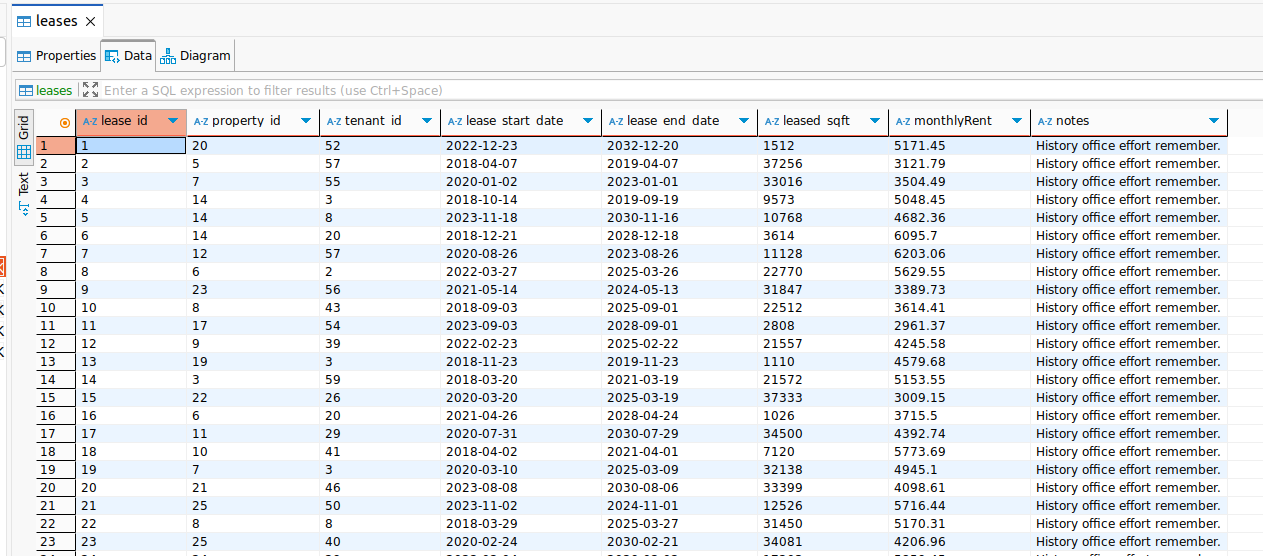
Connect back to the database and, if everything worked properly, we’ll see data in our raw tables:
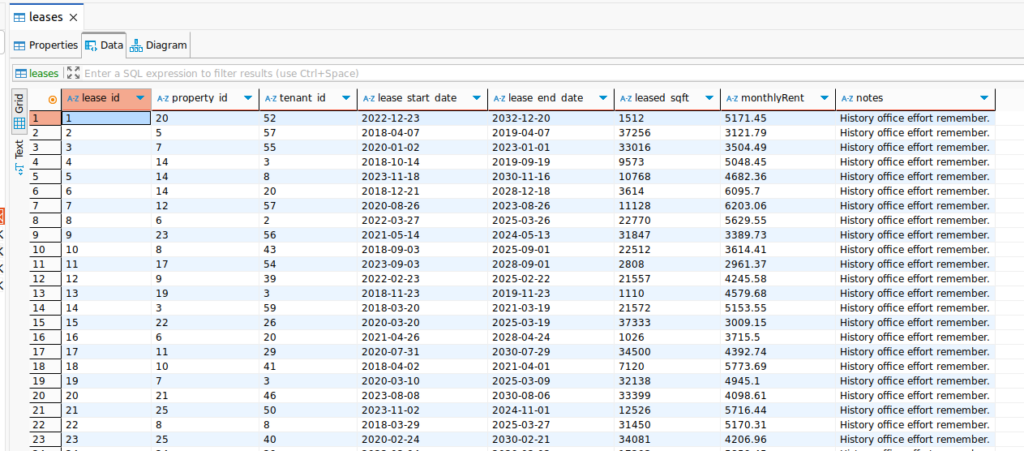
That’s it! In the next article we will develop some processes that utilizes our dw_transform role to clean up our raw data and stage it for use in our marts layer so that it can be displayed in a dashboard.